New Motion menu: Skill Motion
The menu has a new tab, Motion. Its first page, Skill Motion, plays identity skill animations for each condition, with the skill's details beside them.
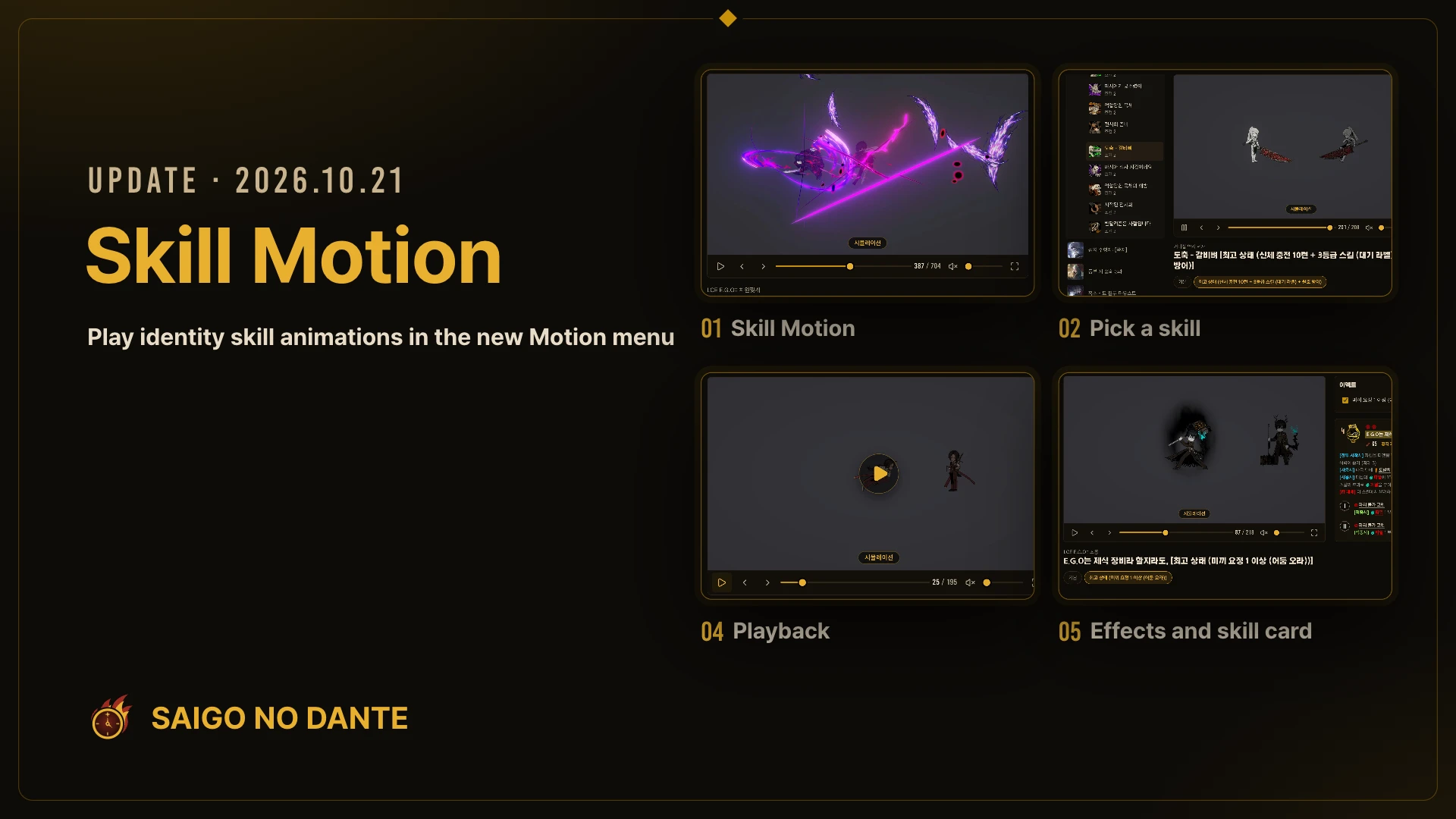
Development note
Skill Motion took about two months. We recorded skills one by one in the game and compared them while building each animation, and it was a lot harder than we expected.
So the camera work and the positions of effects can still differ from the game. Some parts cannot be taken from the game as they are and were filled in from guesses and analysis, so some differences are unavoidable. We will keep refining it to look as close to the game as we can.
01 Skill Motion
Open it from Motion → Skill Motion in the menu.
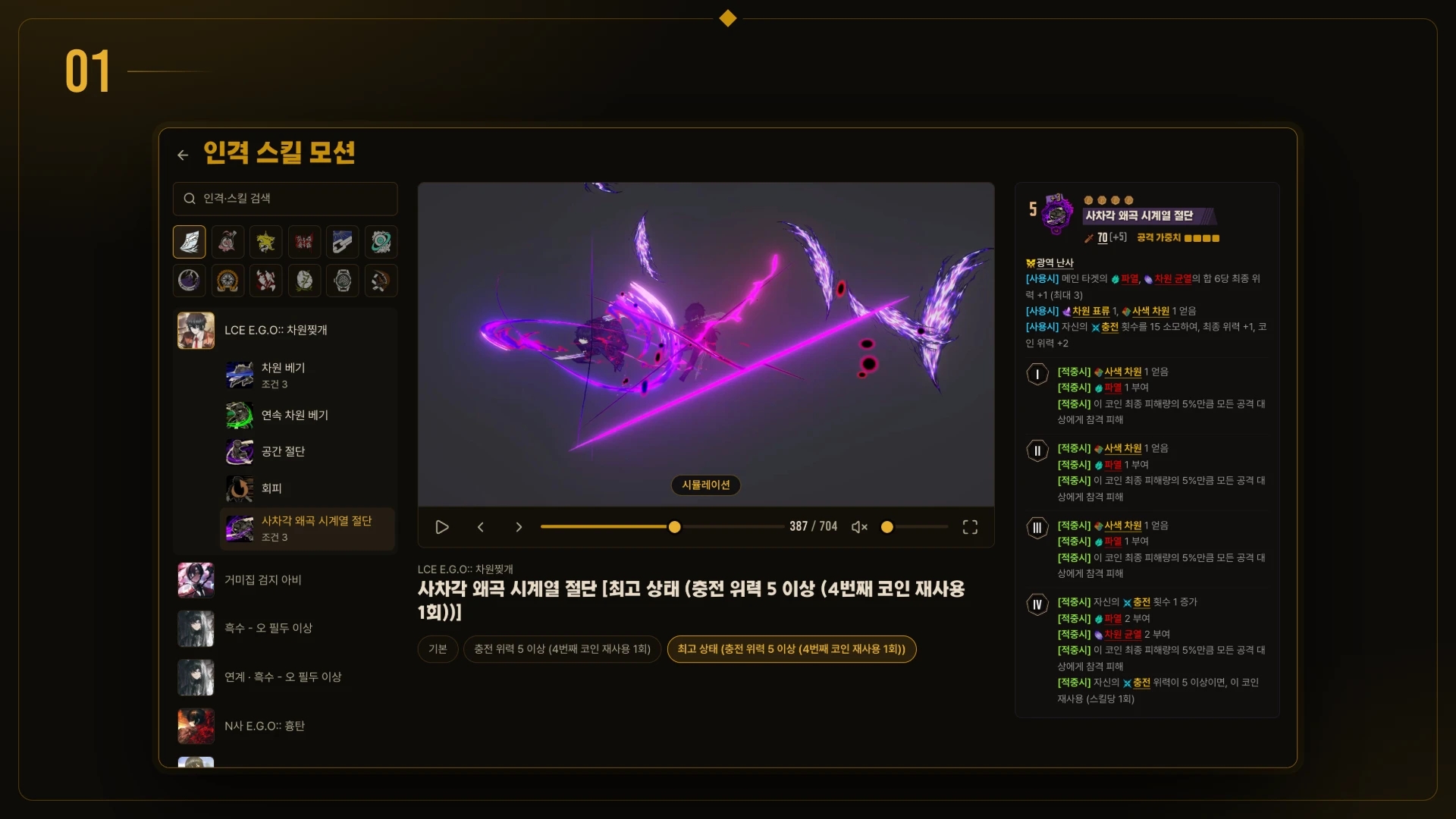
The skill plays in the middle, with the identity and skill list on the left and the effects and skill details on the right.
On a computer the page fits the screen height, and the list, the video and the side panel scroll on their own. Use the ← button left of the title to go elsewhere.
The chosen skill and condition stay in the address, so a shared link opens the same scene.
02 Pick a skill
Choose a sinner at the top to list their identities, newest release first. Tap an identity to show its skills.
Type an identity or skill name in 'Search identity or skill' to search every sinner.
Another form of the same identity is listed under that identity, after a divider. LCB Sinners, 흑수 (Heishou) and link skills sit at the release of the identity they belong to.
On a phone, tap the identity button above the video to open the list.
03 Conditions
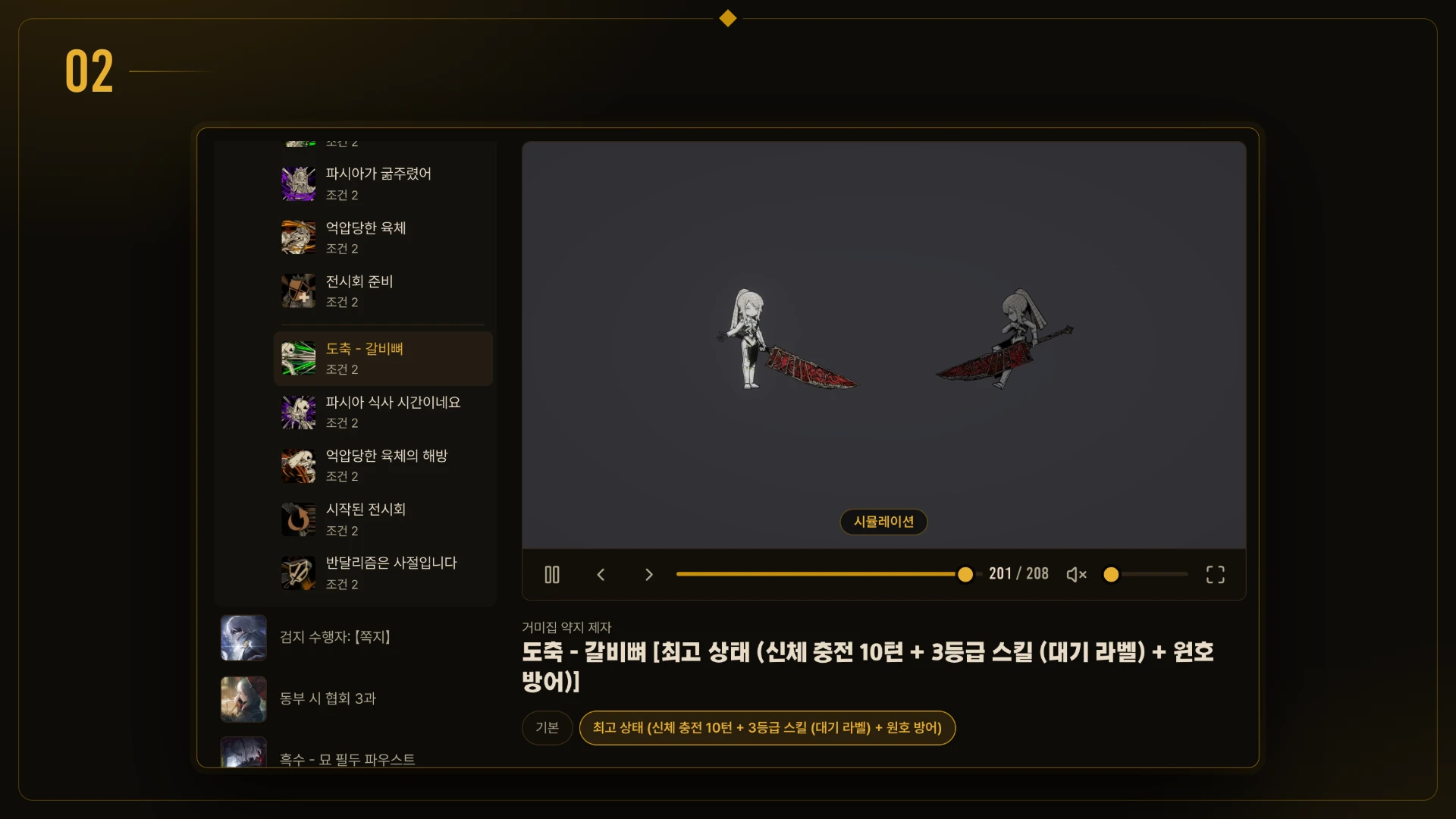
Switch the animation with the condition buttons under the video: Base, each condition, then the best or Max state. The best state opens first.
Switching conditions within one skill keeps the time and play state.
The title shows the game's skill name and condition as they are.
04 Playback
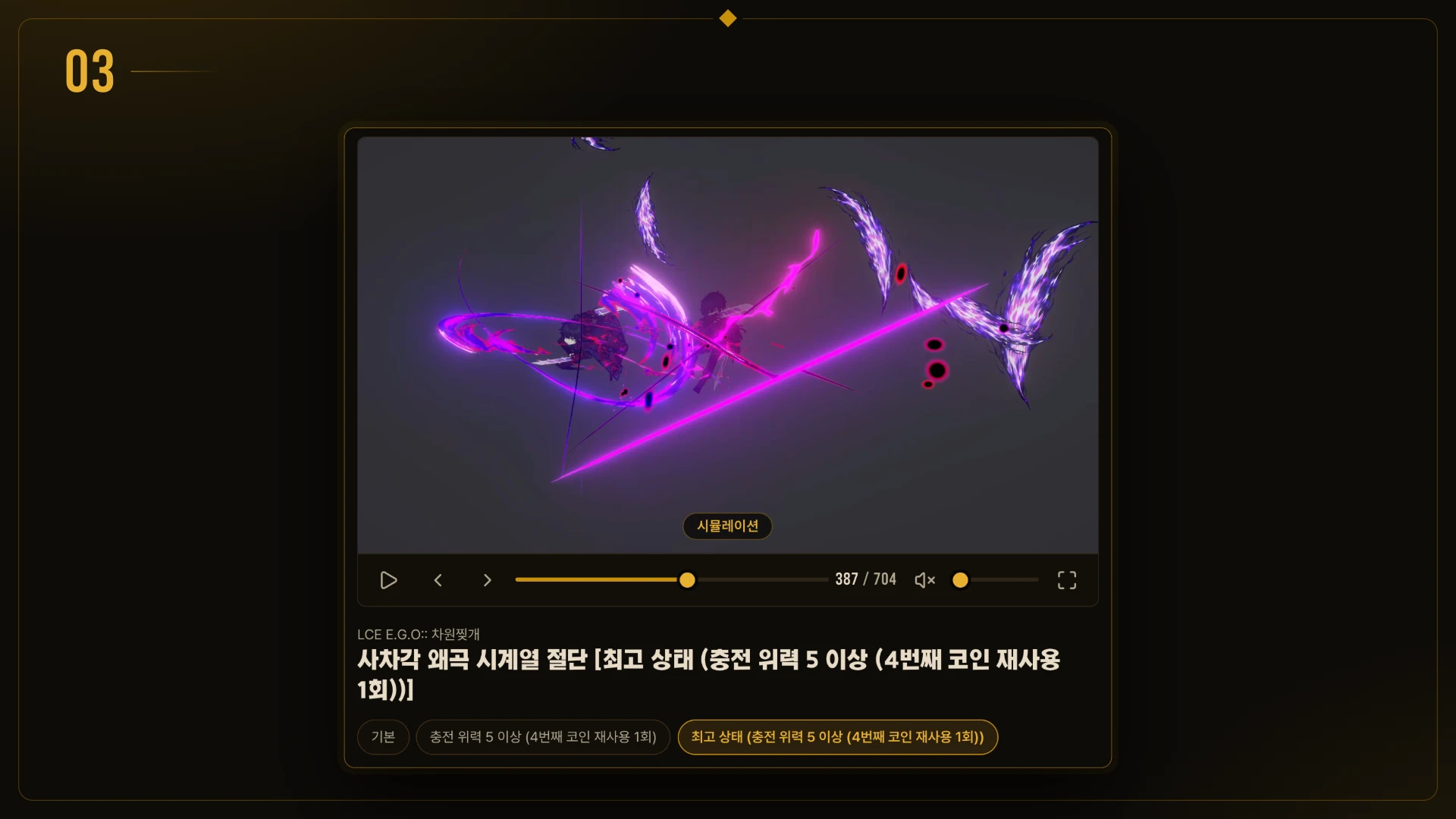
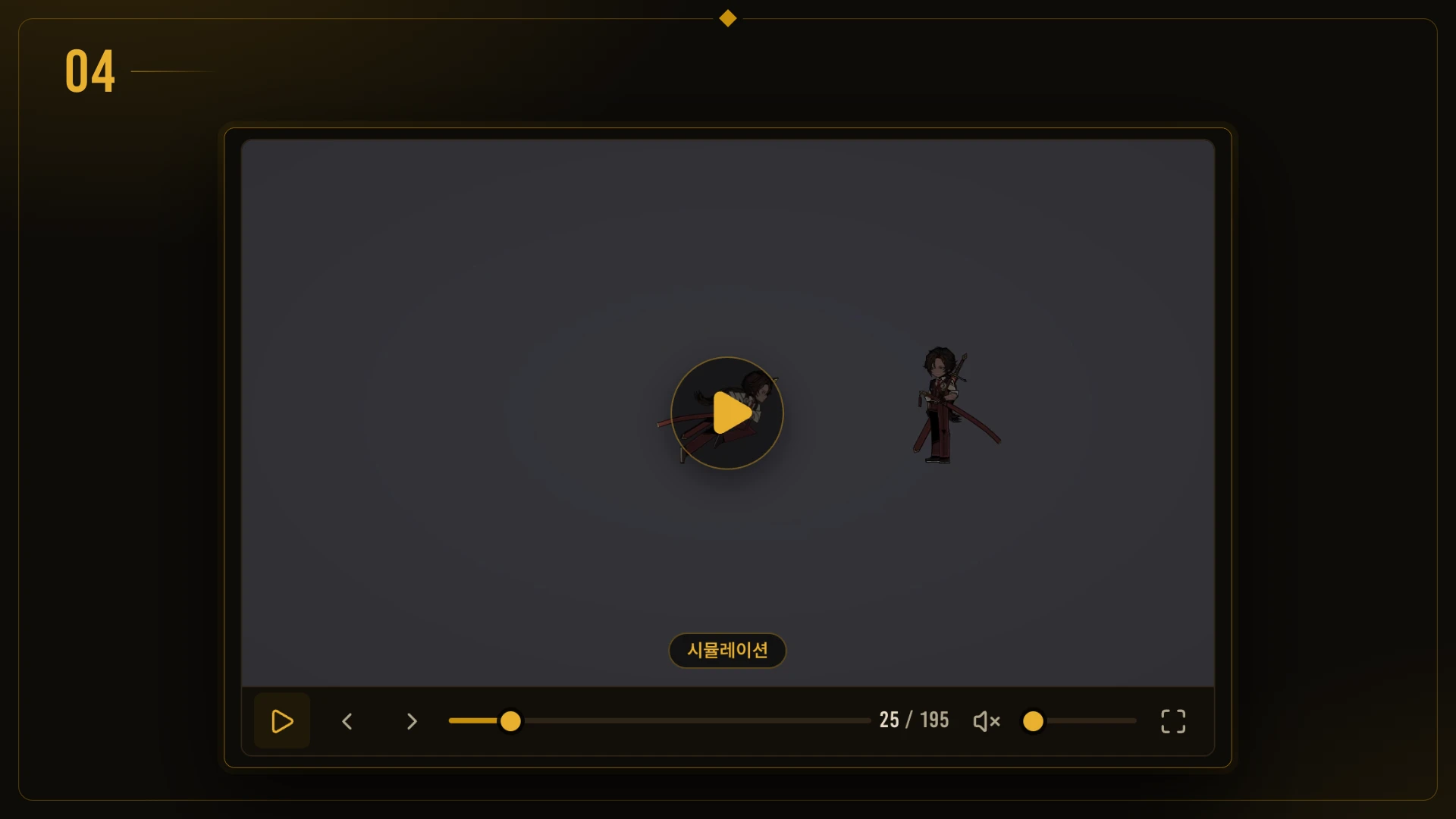
Click or tap the video to play or pause. A large play button shows in the middle while paused.
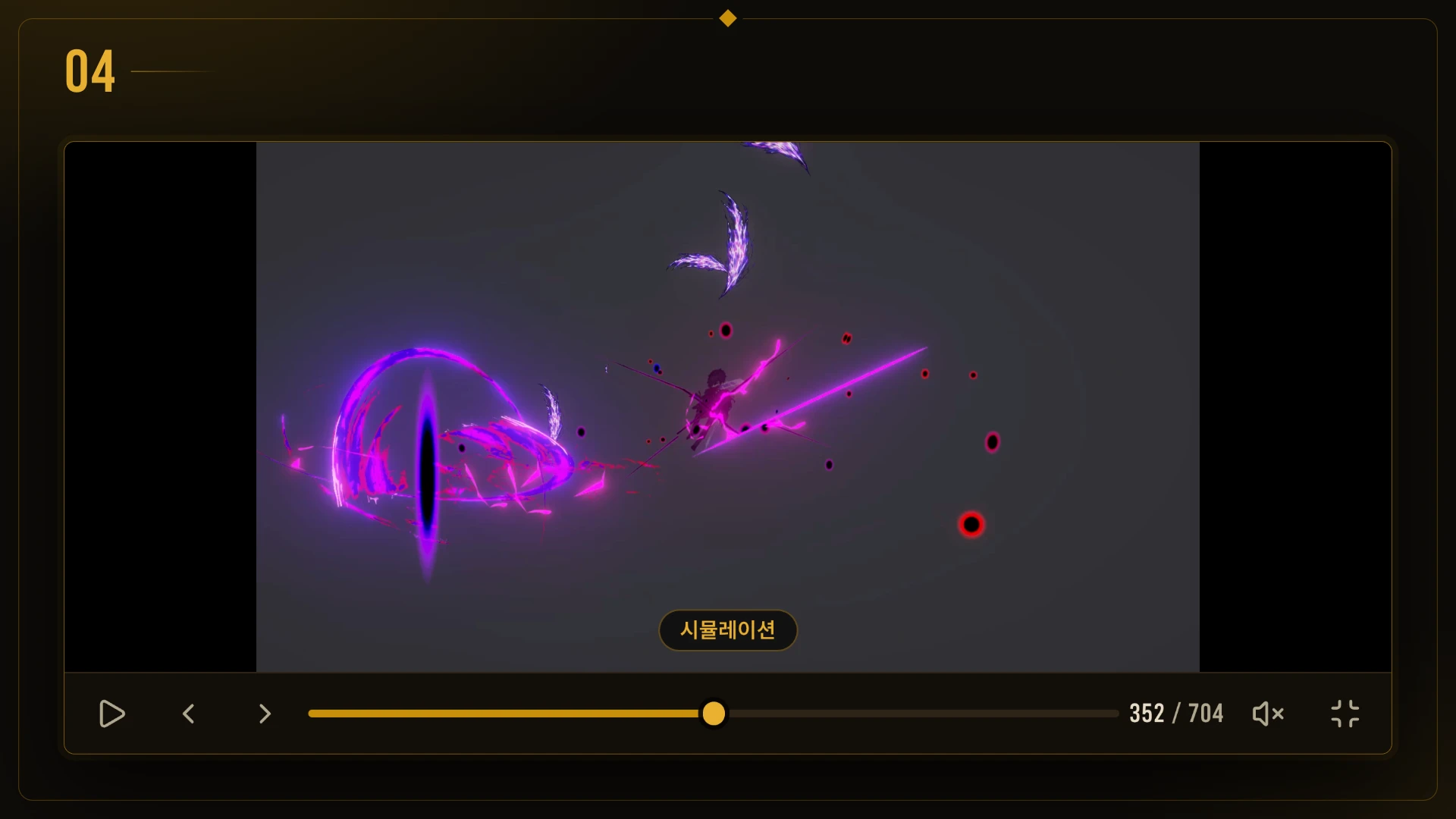
The bar: play, one frame back and forward (computer), seek bar, frame number, sound and volume (computer), full screen.
Holding a phone upright shows a Landscape button. Android locks the screen sideways; on iPhone the video is turned 90 degrees.
05 Effects and skill details
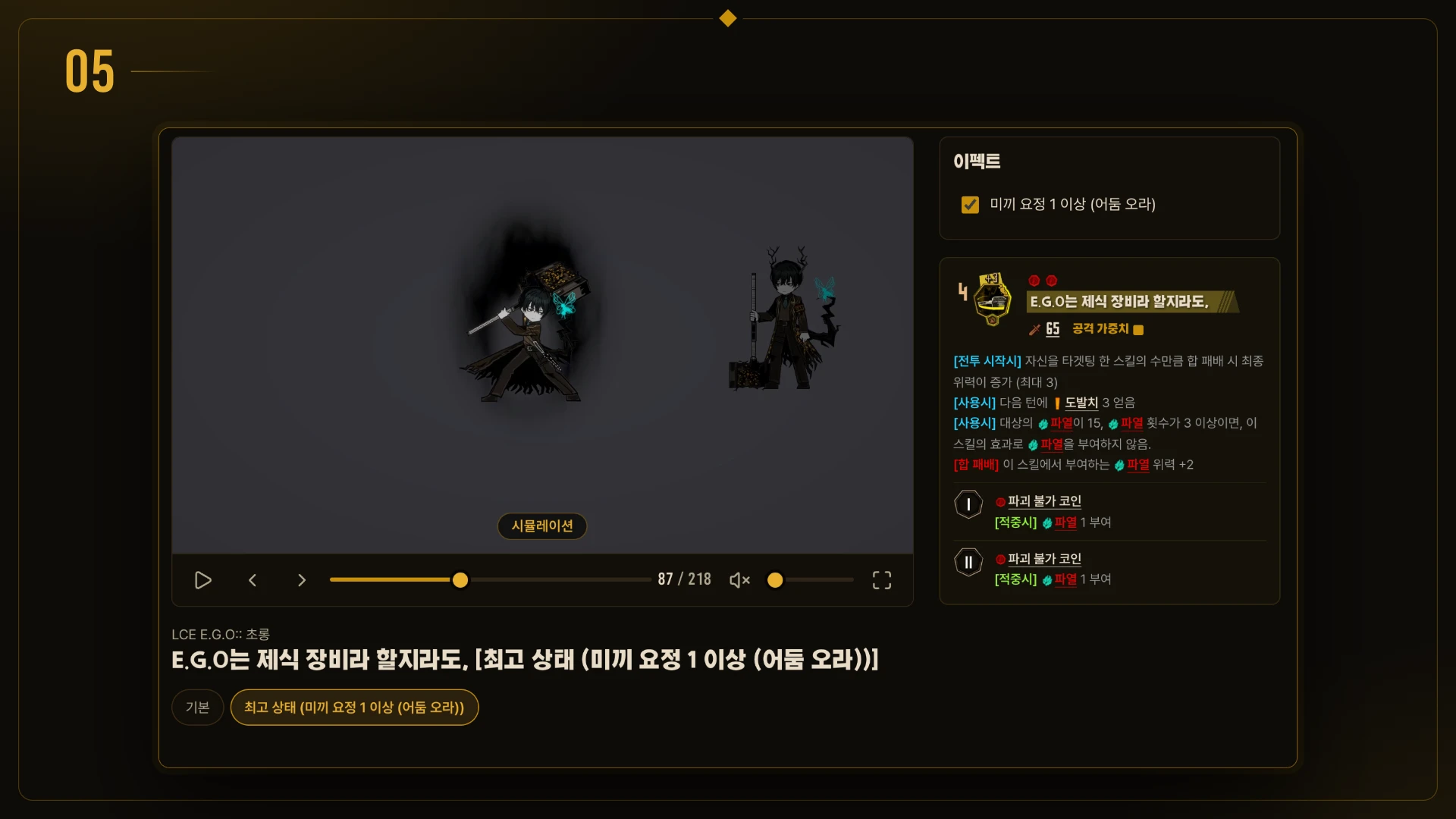
Turn each buff effect on or off under Effects on the right. Effects the game turns off when the skill starts are marked 'Off at start'.
The skill details (frame, coins, power, description) follow. Tap or hover a keyword to read it.
On a phone they come under the video and the conditions.
06 Simulation notice
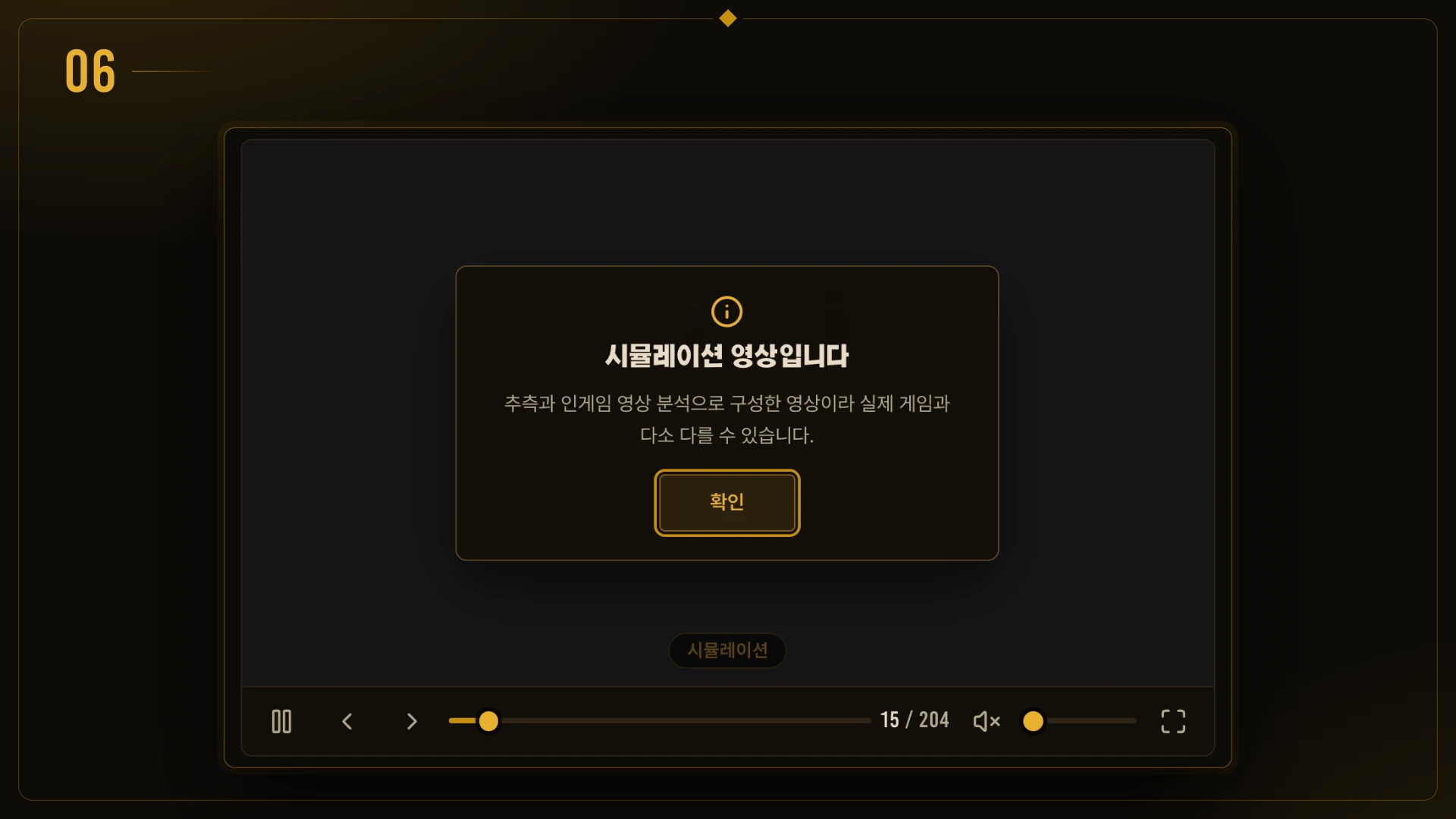
On your first visit, 'This is a simulation' shows over the video. After you confirm it, it does not show again in that browser.
A 'Simulation' label always stays at the bottom center of the video.
Other changes
Skill blocks in deck and plan notes now show keywords the way identity pages do, including keywords older skill text writes as plain words.
Good to know
Screenshots are from the Korean site.
Skill names and condition names in the motion list and buttons are in Korean for now. Identity names and the skill details are in English.
The video may take a moment to load the first time and when you switch conditions.
Browsers without WebGL2 cannot play the video. We recommend a current Chrome, Edge or Safari.
The sound button works only for videos with sound.
If anything looks wrong, please let us know through the contact page.